W e b R e c
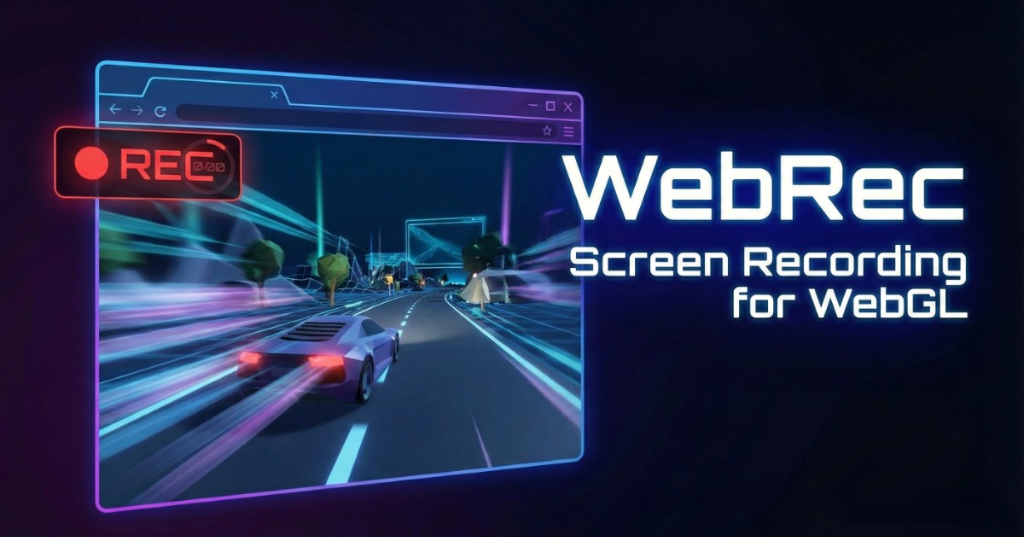
High Performance WebGL Screen Recorder for Unity
Record gameplay directly from Unity WebGL builds with exceptional performance. Uses modern browser APIs for professional-quality recordings at 60+ FPS.
Key Features
Universal Format Support
WebM native format with instant save. MP4, MOV, MKV via built-in WASM transcoder.
High Performance
"Everything" Mode captures Unity Canvas directly with zero overhead at 60+ FPS.
Advanced Capture Modes
Everything, Specific Camera, or Render Texture - choose what works for your project.
Crystal Clear Audio
Automatic Unity audio integration with configurable bitrate (64-320 Kbps).
Smart File Saving
Auto-Download, Remember Location, or Always Ask - flexible saving options.
Customizable Quality
Video bitrate up to 100 Mbps, 30/60 FPS, resolution limiting, and MSAA support.
🏎️ Performance
Graphics API Performance
| Graphics API | Everything Mode | Camera/RenderTexture Mode |
|---|---|---|
| WebGPU | ✓ Zero overhead | ✓ ~0.5ms (GPU-only) |
| WebGL 2.0 | ✓ Zero overhead | ● ~1-3ms (CPU readback) |
Capture Mode Comparison
| Capture Mode | WebGPU | WebGL 2.0 |
|---|---|---|
| "Everything" Mode | Zero Overhead - Direct canvas stream | Zero Overhead - Direct canvas stream |
| Specific Camera | ~0.5ms - GPU-only texture transfer | ~1-3ms - CPU readback required |
| Render Texture | ~0.5ms - GPU-only texture transfer | ~1-3ms - CPU readback required |
📚 Documentation
📦 Installation & Setup
- Import the WebRec package into your Unity project.
- Navigate to
Assets/Plugins/OnionTavern/WebRec/Prefabs - Add the
WebReccomponent to a GameObject in your scene. - Important: Ensure Build Settings are switched to WebGL.
Enable WebGPU (Recommended):
- Go to Project Settings > Player > WebGL Tab
- Expand Other Settings
- Uncheck Auto Graphics API
- Add WebGPU and drag to top of the list
⚡ Quick Start
- Open Demo Scene at
Assets/Plugins/OnionTavern/WebRec/Demo/Scenes/WebRecDemo.unity - Or add the
WebReccomponent to your own scene - Set Capture Method to
Everything - Build and Run your project in a browser
- Click the Rec button to start recording
- Click Stop to finish and save
Note: Recording only works in WebGL builds, not in the Unity Editor.
⚙️ Configuration Guide
Recording Settings
- Capture Method:
Everything: Fastest, captures entire canvasSpecific Camera: Isolated camera recordingRender Texture: Custom render pipeline support
- Format: WebM (instant), MP4, MOV, MKV (transcoded)
- Anti-Aliasing: 2x, 4x, 8x MSAA for Camera/RT modes
Video Quality
- Video Bitrate: 1-100 Mbps (recommended: 25-50 Mbps)
- Audio Bitrate: 64-320 Kbps (default: 192 Kbps)
- Frame Rate: 30/60 FPS or custom
- Max Resolution: Auto-downscale for high-DPI displays
File Settings
AutoDownloads: Instant save to DownloadsRememberLocation: Pick folder once, auto-save thereafterAlwaysAsk: Standard "Save As" dialog
💻 Scripting API
// Get reference
public WebRec webRec;

// Start Recording
webRec.StartRecording();

// Stop Recording
webRec.StopRecording();

// Toggle
webRec.ToggleRecording();
Events
RecordingStarted- Called when recording beginsRecordingStopped- Called when user presses StopProcessingStarted- Video encoding beginsProcessingFinished- Encoding doneFileSaved (string path)- File successfully savedErrorOccurred (string msg)- Something went wrong
❓ Troubleshooting
Record button doesn't work in Editor
WebRec only works in WebGL builds. Build & Run to test.
Video is black or empty
- If using Specific Camera, ensure camera is rendering
- If using Render Texture, ensure RT is being updated
- Try switching to Everything mode to verify recorder works
Performance is slow
- Use Everything capture method for zero overhead
- Lower Max Resolution setting
- Reduce Frame Rate target
- Disable Anti-Aliasing
- Use WebM format to avoid transcoding
📋 Requirements
Platform
- Platform: WebGL (Desktop & Mobile)
- Unity: 2021.3 LTS or newer (tested to Unity 6)
- Graphics: WebGPU or WebGL 2.0
- Dependencies: None (uses native browser APIs)
Browser Support
- ✓ Chrome 90+
- ✓ Edge 90+
- ✓ Firefox
- ✓ Safari*
- ✓ Opera
Render Pipelines
- ✓ Built-in Render Pipeline (BiRP)
- ✓ Universal Render Pipeline (URP)
Ready to Add Screen Recording?
Get WebRec today and let your players capture and share their gameplay moments.